

- Time to get a Darkweb password breach monitoring tool
- What is AD password protection
- Important note ( Previous passwords)
- Installation requirements & Guidelines
- Setting up to enforce – Password protection
Time to get a Darkweb password breach monitoring tool
Dark Web password breach monitoring tools are essential for proactively identifying compromised credentials and preventing unauthorized access to your systems. These tools continuously scan dark web forums, marketplaces, and other hidden channels for stolen passwords and alert organizations when employee or customer credentials have been compromised. The combination of Password protection and a darkweb password breach optimises to excellency its purpose
Microsoft Defender for Identity:
- Monitors dark web for compromised credentials.
- Combine with Microsoft Sentinel and Azure AD Identity Protection for broader security insights.
Have I Been Pwned (HIBP) API:
- Detects exposed passwords from breaches.
- Integrate with Splunk or other SIEM tools for automated alerts and actions.
SpyCloud:
- Tracks compromised credentials in real-time.
- Works well with IAM solutions and SIEM platforms like LogRhythm for password breach remediation.
ZeroFox:
- Monitors dark web and social media for stolen credentials.
- Integrates with SIEM and Threat Intelligence Platforms (TIP) like IBM QRadar.
Recorded Future:
- Provides dark web monitoring as part of its threat intelligence service.
- Combine with SOAR platforms like Palo Alto Cortex XSOAR for automated responses.
DarkOwl:
- Offers continuous dark web monitoring for compromised credentials.
- Can be integrated into custom security platforms or SIEM solutions for incident tracking.
What is AD password protection
This feature helps improve security by preventing users from using common, easily guessed, or compromised passwords. Azure AD Password Protection enforces password policies that prevent users from setting weak passwords by comparing them against a global list maintained by Microsoft as well as custom lists defined by your organization.
In today’s security landscape, ensuring robust password policies is critical for protecting against cyber threats like brute force and credential-stuffing attacks. Azure Active Directory (Azure AD) Password Protection offers a solution by enforcing banned password lists across both cloud and on-premises environments. This feature prevents users from choosing weak or commonly used passwords, enhancing overall security posture. In this post, we’ll walk you through deploying Azure AD Password Protection in an on-premises Active Directory environment, covering the installation of necessary components and configuration of custom password lists tailored to your organization’s needs.
Important note ( Previous passwords)
It is important to note that Microsoft Entra Password Protection can only validate passwords during password change or set operations. Passwords that were accepted and stored in Active Directory prior to the deployment of Microsoft
Entra Password Protection will never be validated and will continue working as-is. Over time, all users and accounts will eventually start using Microsoft Entra Password Protection-validated passwords as their existing passwords expire normally. Accounts configured with “password never expires” are exempt from this.
Installation requirements & Guidelines
Important note that Core servers do not support the PROXY agent , will only get installed the DC agent!!
- Core DCS must only have installed the DC agent ( not the proxy )
- GUI servers can have installed both ( Agent and Proxy )
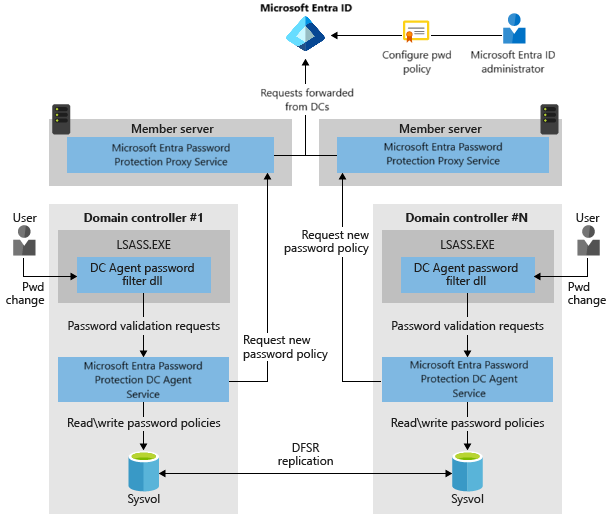
- DC Agents: Enforce password protection locally on domain controllers by checking passwords during password changes.
- Password Protection Proxy Agent : Acts as a bridge between Azure AD and the on-premises environment, ensuring that DC Agents have up-to-date password policies.
Firewall Ports Required ( Only the Proxy , not required in the DC agent )
Port 443 (HTTPS): Used by the Entra Proxy service to communicate with Azure AD.
- Ensure that the on-premises servers (Entra Proxy and DC Agents) can reach the following endpoints:
*.msftauth.net*.passwordprotection.microsoft.com*.aadlogin.net
Installing Password Protection Proxy
- Install the Password Protection Proxy on member servers (not on domain controllers).
- The proxy communicates between your on-premises environment and Azure AD.
- Open necessary firewall ports, particularly TCP 443 for internet communication.
Installing Password Protection DC Agents
- Install the DC Agents on all domain controllers.
- These agents enforce password protection policies by checking passwords during changes against both global and custom banned password lists.
- Ensure RPC ports (TCP 135 and dynamic RPC range) are open between domain controllers and proxy servers.
Installing the Proxy Agent in DC GUI
Installation is very simple , almost no interaction is required

installing the DC agent in DC GUI
Installation is very simple , almost no interaction is required

Setting up to enforce – Password protection
Once the modules have been setup , the proxy agent must be setup accordingly to connect with MS services. beware the DC agent do not need any extra configuration
Import-Module AzureADPasswordProtection

// Only on PROXY AGENT //

Register-AzureADPasswordProtectionProxy -AccountUpn '' -AuthenticateUsingDeviceCode ( Only on GUI DC )

// Only on Proxy Agent //

Register-azureadpasswordprotectionforest -Accountupn ““ -AuthenticateUsingdeviceCode ( Only on Gui  DC )
Can’t think of any banned passwords?
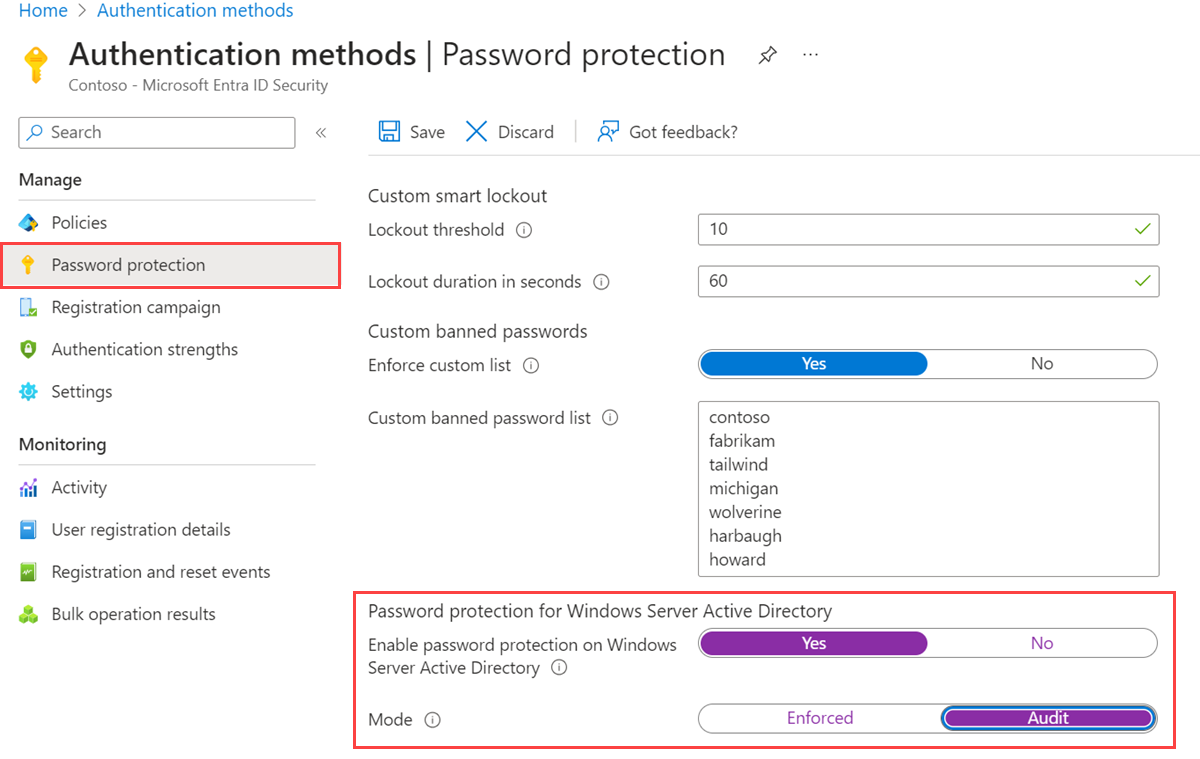
In addition to the global list provided by Microsoft, import custom banned passwords (such as the one from the GitHub link provided ). This can include organization-specific terms (e.g., company name, product names).To set up the custom list:
- Access Azure AD Password Protection in the Azure portal.
- Upload your custom list using PowerShell or the portal interface.
- Ensure it is updated regularly to keep pace with password security best practices.
- Ensure to have a process internally to implement breached passwords
- Highly recommendable to combine this feature with a breached password darkweb monitor
 7 IT & Security