
Hi everyone … today we gonna talk about WMI
WTF is WMI? ok lets read some wiki ( technet ofc 🙂 )
Purpose
Windows Management Instrumentation (WMI) is the infrastructure for management data and operations on Windows-based operating systems. You can write WMI scripts or applications to automate administrative tasks on remote computers but WMI also supplies management data to other parts of the operating system and products, for example System Center Operations Manager, formerly Microsoft Operations Manager (MOM), or Windows Remote Management (WinRM).
Where applicable
WMI can be used in all Windows-based applications, and is most useful in enterprise applications and administrative scripts.
System administrators can find information about using WMI at the TechNet ScriptCenter, and in various books about WMI. For more information, see Further Information.
Developer audience
WMI is designed for programmers who use C/C++, the Microsoft Visual Basic application, or a scripting language that has an engine on Windows and handles Microsoft ActiveX objects. While some familiarity with COM programming is helpful, C++ developers who are writing applications can find good examples for getting started at Creating a WMI Application Using C++.
To develop managed code providers or applications in C# or Visual Basic .NET using the .NET Framework, see WMI in .NET Framework.
HOW TO QUERY WMI YOUR SYSTEM? -RUN -> WBEMTEST (Win Key +R)
You will see something like this .. so click on connect

You will need to connect to root\cimv2
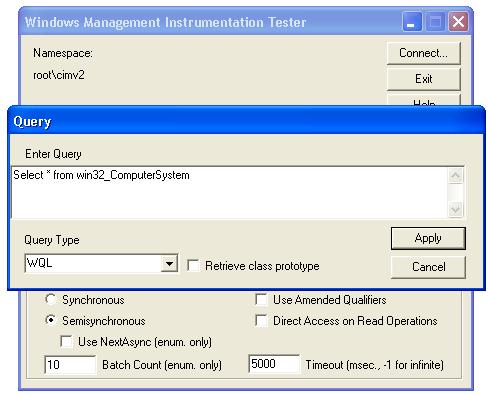
And there is a example of WQL querying
Common hardware WMI queries
Hardware Asset Tag
root\cimv2 |
2 |
SELECT * FROM Win32_SystemEnclosure |
SMBIOSAssetTag |
Computer Manufacturer
1 |
root\cimv2 |
2 |
SELECT * FROM Win32_ComputerSystem |
3 |
Manufacturer |
Computer Model
1 |
root\cimv2 |
2 |
SELECT * FROM Win32_ComputerSystem |
3 |
Model |
Computer Serial
1 |
root\cimv2 |
2 |
SELECT * FROM Win32_BIOS |
3 |
SerialNumber |
Chassis Type
1 |
root\cimv2 |
2 |
SELECT * FROM Win32_SystemEnclosure |
3 |
ChassisTypes |
Examples on VBscript & PS
VBSCRIPT
1 |
' Sets computer name to the current computer name |
2 |
strComputer = "." |
3 |
' Connect to the WMI Service |
4 |
Set objWMIService = GetObject("winmgmts:" & "{impersonationLevel=impersonate}!\\" & strComputer & "\root\cimv2") |
5 |
' Fetch all details from Win32_computersystem |
6 |
Set colComputerSystem = objWMIService.ExecQuery ("Select * from Win32_computersystem") |
7 |
Set colBIOS = objWMIService.ExecQuery ("Select * from Win32_BIOS") |
8 |
' Look through all values, and make variables for manufacturer and model |
9 |
For each objComputerSystem in colComputerSystem |
10 |
GetComputerManufacturer = objComputerSystem.Manufacturer |
11 |
GetComputerModel = objComputerSystem.Model |
12 |
Next |
13 |
Wscript.echo "The system you are on is a " & GetComputerManufacturer & " " & GetComputerModel |
POWERSHELL
In a PowerShell window run the following command to extract the Manufacturer and Model of the hardware on the local machine:
1 |
Get-WmiObject win32_computersystem | Select Manufacturer,Model |
and the output can be seen here:

Thanks to ivan detric
ENjoy!

