
Today we are going to dive in Nanoserver deployments
Some characteristics regarding the new nanosilver windows server edition :
Nano Server is headless; it has no local user interface, no 32-bit application support, and only the most basic configuration controls.
There is no support for Remote Desktop; to administer the system, you use Windows Remote Management (WinRM) remote PowerShell connections, and Windows Management Interface (WMI) tools.
The two basic scenarios for Nano Server deployments
1.Server cloud infrastructure services, such as Hyper-V, Failover Clustering, Scale-Out File Servers, DNS, and Internet Information Services (IIS)
2.Born-in-the-cloud applications running on virtual machines, in containers, or on physical servers, using development platforms that do not require a graphical interface
How to INSTALL
- Ensure that you have mapped a windows server 2016 CD drive into your core machine when you hold your VM’s ( VMWARE/ Hyper-V …ETC)
The main folder that we are going to work with is Nanoserverimagegenerator , located inside the MEDIA CD / IMAGE
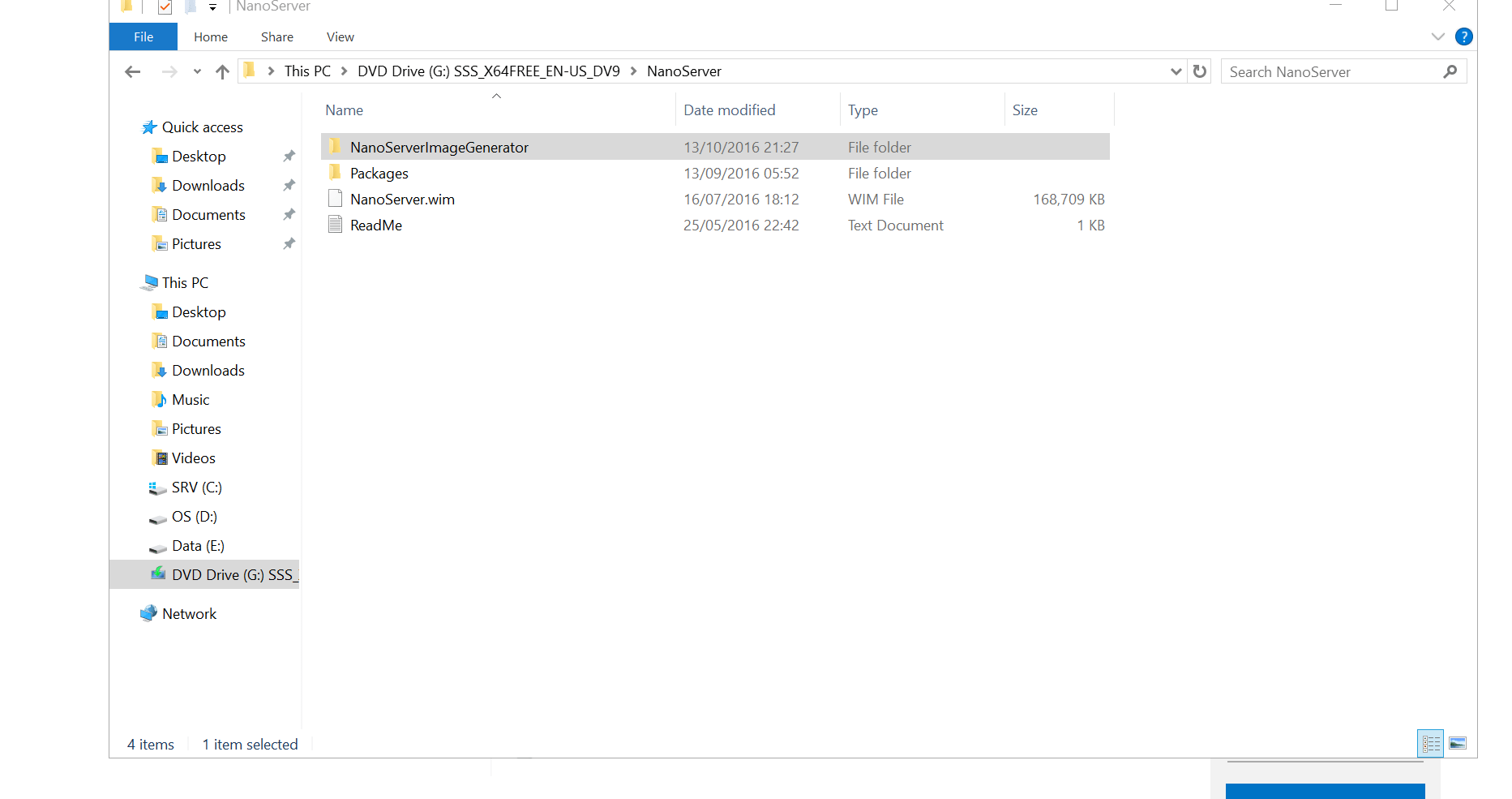
2.Open a PowerShell console & ensure to target the correct path wich follows the next image

Hence we import the nanoserver module installation
command: import-module .\NanoServerImageGenerator.psm1

once done, We’ll specify & create the image
PS
New-NanoServerImage -deploymenttype guest -edition datacenter -mediapath ‘G:\
‘ -computername NANOSRV01 -Administratorpassword @Winter2020 -enableremotemanagementport -targetpath c:\NANO\NANOSRV.vhd
You MAY CHANGE THE PASSWORD / COMPUTERNAME & TARGETHPATH

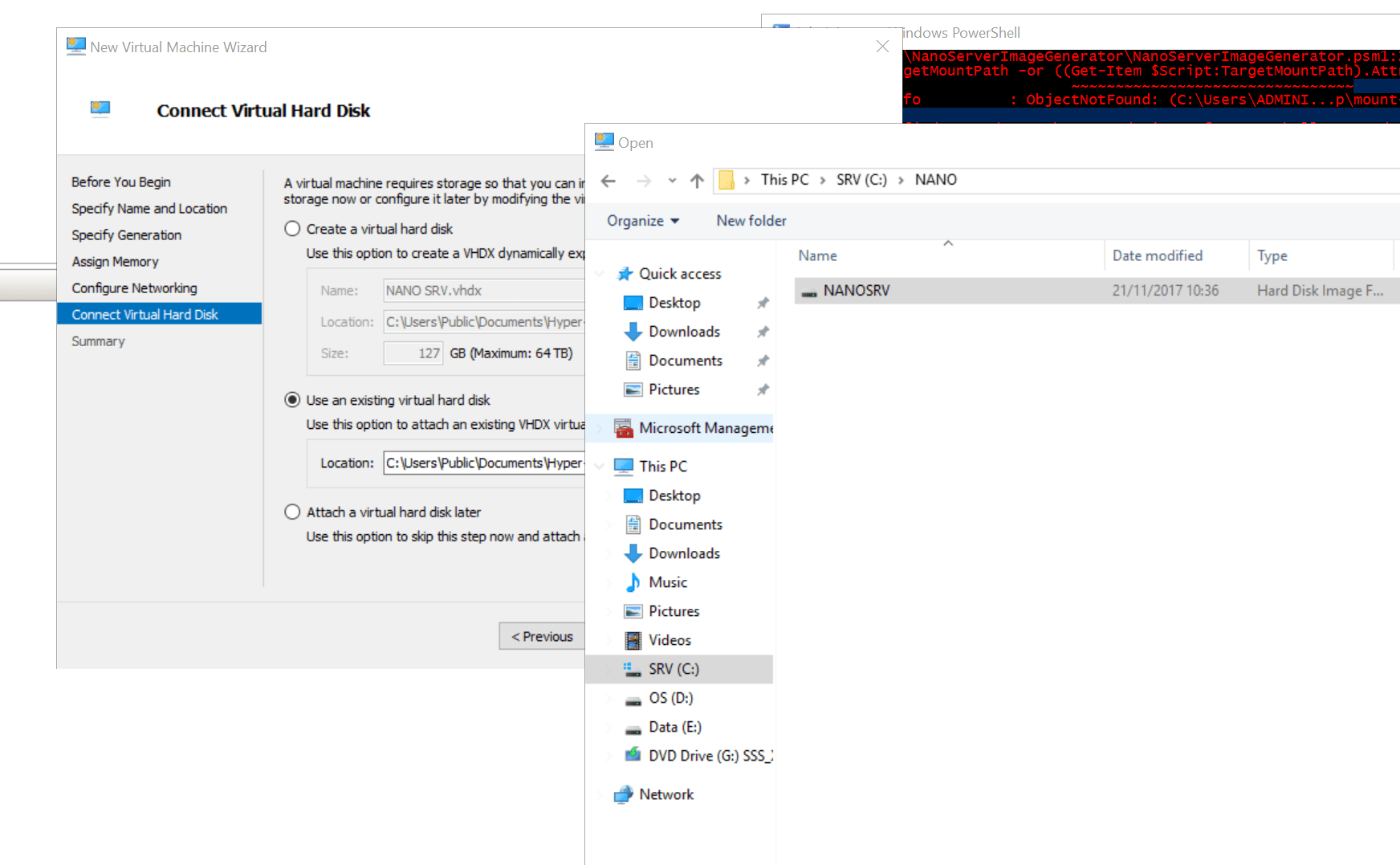
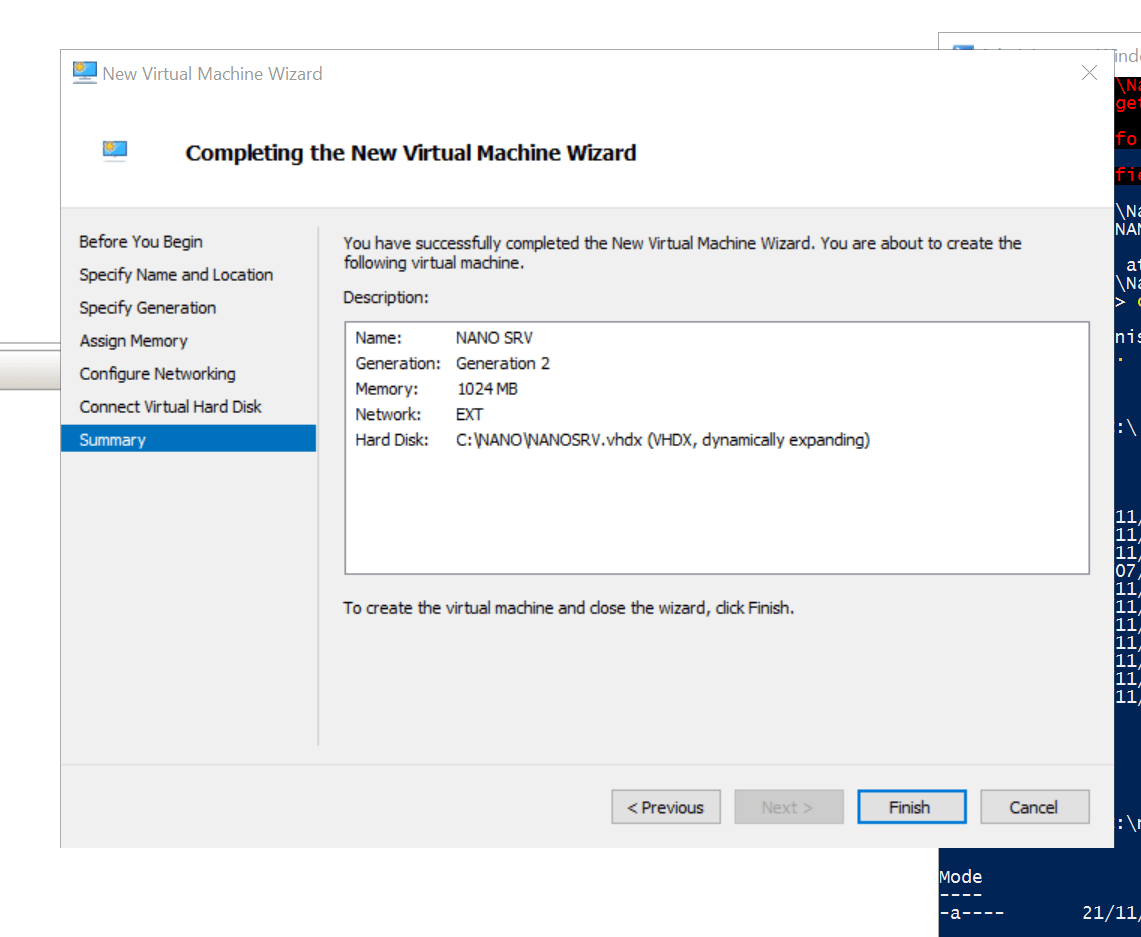
3. Add your nanoserver into the hyper-v console
select generation2
include the option “use an existing virtual hard disk”
4. Ready to crack on!

Installation Parameters & definitions ( Extracted from an official source )
DeploymentType
Specifies whether the image file should be used on a Hyper-V virtual machine (Guest) or a physical server (Host).
Edition
Specifies whether to install the Standard or Datacenter edition of Nano Server.
MediaPath
Specifies the path to the root of the Windows Server 2016 installation disk or mounted image.
BasePath
Specifies a path on the local system where the cmdlet creates a copy of the installation files from the location specified in the MediaPath parameter. Once the copy is created, you can use the BasePath parameter only for future New-NanoServerImage commands and omit the MediaPath parameter. This parameter is optional.
TargetPath
Specifies the full path and filename of the new image to be created. The filename extension (.vhd or .vhdx) specifies whether the new image should be Generation 1 or Generation 2.
ComputerName
Specifies the computer name that should be assigned to the new image.
Have fun!
 7 IT & Security